Posts Tagged ‘Computers’
 Technology failure
 October 14th, 2010 |
  Author:
 Olga and I went to a dinner party last night and the topic of how we have become slaves to computers came up. When I was a child, the science books promised that technology and automation would make our lives easier so we would work less hours and have more time for leisure. What a joke that seems now. We all work longer hours and the impact of computing and modern communications technology is that people now expect answers instantly instead of when you can get around to it. When I mentioned another promise of the computer age, the paperless office, the entire table fell about laughing.
Kelly, K4UPG writes that he had just spent six hours running updates, fixing the problems the updates created and figuring out how to install the updates that wouldn’t install automatically. His verdict: Computers Do Not Save Time.
The last couple of mornings Acronis Non-stop Backup has displayed a message that it was not running. Kelly’s post made me wonder if this was caused by a recent Windows update. I decided to do a System Restore back to last Monday, before most of the updates occurred, and lo and behold Non-Stop Backup is running again. I don’t have the inclination to spend six hours installing updates individually to find which one caused the problem, nor to ferret through forums searching for a solution, so automatic updates have been switched off for the time being. Having a working backup is more important than receiving fixes to problems I haven’t experienced and probably never will.
The trouble with computers is you have to spend too much time being your own support technician, time you should be spending working, playing radio or whatever the computer is supposed to be helping you with. Once upon a time computers were simple, reliable and never needed updating. What was the name of the operating system they ran? Ah yes, MS-DOS.

qsl.net gone phishing?
OpenDNS is a free domain name server (DNS). Most of you will know what that is, but for those who don’t, a DNS is a server that converts web addresses like blog.g4ilo.com into numeric IP addresses like 123.234.345 so the web browser can find the right web site. Most people use the DNS provided by their internet service provider (ISP) and don’t think twice about it. However, the DNS provided by many ISPs is slow and unreliable. It was because of that that I started searching for a free alternative and discovered OpenDNS.
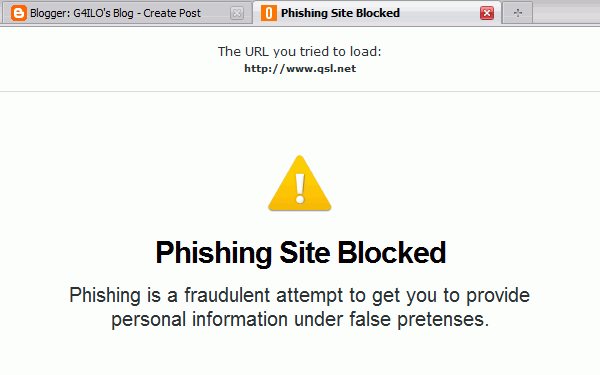
An added benefit of OpenDNS is that it provides content filtering. This can be a useful safeguard if you have children who use the computer as it can prevent them accessing various dubious sites. It can also protect you from visiting phishing sites – websites that pretend to be the login pages of various online banks or email services so they can steal your passwords. It does this by converting the addresses of known phishing sites to the IP address of a warning page instead. The web is a pretty dangerous place these days and any extra level of protection is a good thing as far as I am concerned.
However, this afternoon I tried to access a ham radio site at qsl.net, and was informed that this was a phishing site and had been blocked. In fact the whole of qsl.net has been blocked to users of OpenDNS. I have contacted them using the link provided to tell them that qsl.net is a free web host for ham radio hobby sites. I’m assuming, of course, that qsl.net hasn’t been blocked because it is hosting malware.

Serial addition
I installed a four port RS-232 serial card in my shack PC today. When I bought the computer earlier in the year I purchased and installed a two port serial card, thinking that would be enough. But it wasn’t. You can never have enough serial ports if you want to interface with radios. With four, I can now have CAT control of both the K2 and the K3, the TNC connection to the Kenwood TM-D710 and one more which is currently controlling the PTT of the FT-817 for the EchoLink node but could be used for the control port of the Kenwood if I ever decided to use that for EchoLink. No more hassles with USB to serial adapters, and all my USB ports are free for things like sound cards. I don’t know why people use laptops for shack computers, they provide far fewer options.
Needless to say, things did not go as smoothly as they could have done. I thought I could have COM2 for the K2, COM3 for the K3 which would be easy to remember. But Windows gave the ports the designators COM3, 4, 10 and 11. There’s an option to reassign the port numbers but Windows claimed that everything from COM2 to COM9 was in use. By what, was my unanswered question.
In the end I decided to name the ports COM2 through COM5 as I wanted regardless of Windows’ protestations. They did work, but finding out which port was which was a matter of attaching a radio to one socket, loading a program and trying all possible COM port numbers until it worked, as there was no logical correspondence between the numbering and the sockets on the back of the computer. Who said it was meant to be easy anyway?
Despite all this I managed to make a few contacts using JT65A on 20m including DU1GM, N0OB and K1CF, using 25W to the dipole.
Although I now have computer control of the K2 I don’t have a sound card interface as I have cracked open the plastic case of the USB audio dongle and superglued the bottom half containing the PCB to the stripboard on which I will be building my homebrew SignaLink clone. Of course, now I have a serial cable connection between the computer and the K2 I don’t need a VOX controlled interface, never mind an isolated one because the serial cable will bypass the isolation anyway!

The GPS you didn’t know you had
The great thing about the internet is that you can find the answer to anything. You may not understand the answer, it may not even be the correct answer, but you can find it. And sometimes you will find out more than you were expecting.
Yesterday I happened to think “If I have a computer or smartphone with a GPS, can my position be accessed from its web browser?” A quick search of Google turned up the answer that yes, it could, in newer browsers that support HTML 5 like Firefox 3.6 and Google Chrome and the Android web browser. I even found some example code showing how to use it. I made a test page to try it out for myself. The results were a little unexpected.
First I tried it using my shack PC, which is a mini-tower with only a wired connection to my router. It told me that I was in Sheffield. This was actually not unexpected, as that is similar to the location I see when visiting some blogs that have a widget to show where visitors come from. I presume they, and the web browser, use geolocation by IP address if that is the only available method, and Sheffield is presumably the location of my broadband ISP’s data centre.
When I tried using my smartphone running Android I saw the GPS status icon flicker on for a couple of seconds and my page then reported my position as being in Broughton, a village a couple of miles west of here. I’m guessing that the GPS didn’t have time to get a good fix so I got a poor one, or else it is reporting the location of the cell the phone is connected to.
But the really surprising result was when I tried using my laptop. This doesn’t have a GPS and is connected using wi-fi to my router, so it has the same IP address on the web as the shack system. Yet my test page pinpointed my location as across the street over the back, only about 20 yards from my actual location. I tried my netbook as well and got more or less the same position . How the heck did it know where I am?
After a bit more Googling I discovered that this is done by triangulating your position using the names or SSIDs of the wi-fi access points your computer can receive. A firm called Skyhook has created a database of access points and their locations by driving around every street in every town and city in the US. There is also a site called Geomena.org that has an access point database created by ordinary individuals. You can even add to it by installing a client app in your iPhone or Android phone and going walkabout. Google has a database which it presumably created at the same time it drove around doing Street View mapping and snooping on people’s unsecured data. In Firefox you can see which wi-fi geolocation database is used by going to the address about:config (no http://) and examining the value of geo.wifi.uri. By default it’s Google’s. You can also disable browser geolocation by changing the value of geo.enabled.
I think the geolocation feature is pretty cool but I’m sure many privacy-obsessed types will be horrified by the thought that even without an actual GPS their position can be located to that kind of accuracy.
If you are interested in trying this for yourself then you can visit the Geolocation Test page that I created. If your browser supports geolocation (and you have Javascript turned on, which is necessary for the page to work) then you will be asked if you want to share your location with g4ilo.com. This is presumably a privacy thing, because if I wanted to I could log all the positions in a database. I don’t, and in any case you’re all hams so I can find out where you are from qrz.com, so hopefully you won’t have a problem with that. If you allow the site to see your position it will then display your latitude, longitude and Maidenhead locator and show the position on a map so you can easily see if it is accurate.
If you do try my test page I’d be interested to know, via comments, how accurate the position was and whether your computer had a GPS, wi-fi or you were using a smartphone. If you have a mobile wi-fi device, does it track your position as you move around? If the results are promising I might make a permanent page for determining your grid locator using geolocation.

Hard drive update
As so many people commented on my post about my apparently failing hard drive I thought I’d post an update. Dell had me run some diagnostics that are on a special diagnostic partition. I ran the entire set of hard disk diagnostics which took most of the day including a full surface scan and the drive passed all tests without a single error. Therefore as far as Dell is concerned there is nothing wrong with the hard drive. It’s possible that as Steve GW7AAV commented the operating system has marked the bad sectors so they won’t be used any more, in which case hopefully the issue was just a one-off.
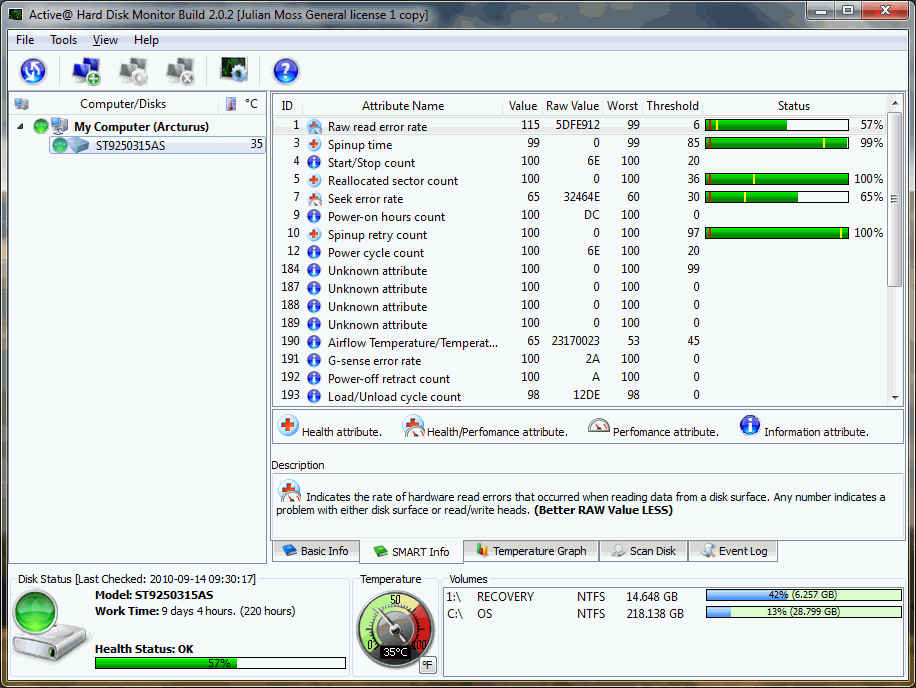
In order to keep an eye on the situation I decided to look around for a SMART hard drive monitoring utility which can display the statistics stored on the hard drive controller, preferably a free one. My searches located one called Active@ Hard Disk Monitor Free which seemed to display an impressive amount of information. This program said the Health Status of my hard drive was OK, though the value was only 55% which didn’t seem too healthy to me. It’s up to 57% now, which makes me think that something bad did happen and the value will slowly improve with continued error-free operation. A look at other screenshots of the program showed values in the high 60s so perhaps I shouldn’t expect to see close to 100%. Hopefully if the problem occurs again this program will provide more information about what actually happened.
Annoyingly, when I started the computer the next day and looked at the stats I saw that Active@ Hard Disk Monitor Free is not free at all. It is a 14-day trial version. When I checked download.com I saw there were a lot of complaints about this. The old version was free, but not the current version. However it is only $6.99 to purchase a license for one PC so rather than waste more time trying to find another free alternative I have decided to pay for it.

Hard drive failing
Two months ago I got a new Dell Inspiron laptop to use for my work. I have been very pleased with the computer which is quite fast and has a good keyboard and a very nice screen. However this afternoon I switched it on to do a bit of work and was typing away when the hard drive started making a noise like a cat with indigestion – which anyone who has ever done tech support will recognize as the sound of a hard drive attempting to read a bad sector.
Windows froze, there was no way out but to long-press the power switch, losing the work I had been doing. On start-up, Windows insisted on doing a disk check and printed up a lot of messages that appeared to be to do with errors on the hard drive. Eventually I was able to restart, Windows booted up and it seems to be working normally again. But my confidence in the system’s reliability has taken a blow. In my experience hard drives don’t malfunction once and then run perfectly for ever after. But there’s no sign of any fault now, so I have little option but to wait until the next time it starts making funny noises. 🙁

The best cheap sound card for digimodes
The popularity of web videos and podcasts means that most ham radio enthusiasts who want to use sound card digital modes no longer want to dedicate their computer’s built-in sound card for that purpose. The usual solution is to buy a purpose made interface such as a RigExpert or SignaLink (expensive but highly recommended by all who own one) or an external USB sound card. However a great many people claim that the cheapest USB sound card “dongle” costing just 99p on eBay is good enough. Take it from me, it isn’t.
I have had several online discussions bordering on arguments with self proclaimed experts who claim that the sound chip in these cheapo “dongles” is exactly the same as the one in a £100 SignaLink USB interface so the £1 dongle must be just as good. I have no idea if they are right about the chip. What I do know is that when I played back a recording of very weak CW using one of these devices all I could hear was noise. And when I tried to use one of these devices to decode a fast digital mode such as packet, I decoded nothing at all, not a single packet, even though I could see the signal loud and clear on the waterfall.

I have tried a number of these cheap devices. I bought two of the cheap thumb sized “dongles”. One I threw away after seeing the noise it introduced on the waterfall. The second I bought thinking it would be good enough for computer audio, which it was, but had to throw it away when it failed after a week. I also spent a bit more on a slightly fancier sound card “dongle” which I currently use for computer audio, but which still displayed the inadequacies on weak signals and fast data modes that I have mentioned.
Finally I tried the device pictured above. It doesn’t have a brand name but can be readily identified from the picture and is advertised on eBay as something like “USB 6 Channel 5.1 External Sound Audio Card For Laptop”. It costs around £8.50 including postage from China. It comes in a small extruded aluminium case, has connections for SP/DIF input and supports sample rates of up to 48kHz so it would probably be suitable for basic SDR use. It has decoded every digital mode I have so far tried it with. And it’s small enough to build into your own box to make a DIY SignaLink.
It comes with a mini-CD containing a Windows driver. This installs a small mixer/control panel application that loads in the task bar and provides the usual control over the various sound effects. I used one of the start-up program managers (Autoruns) to remove it and find that it works perfectly well for my purposes without it, just using the standard Windows mixer settings. This is certainly preferable to the Creative SoundBlaster USB device that some people recommend which allegedly installs 200MB of junk on your hard drive.
I think this is probably the cheapest external sound device that is worth using for sound card digital modes. I’d be interested to know of alternatives, but please don’t recommend something unless you have actually done A/B comparisons with a known good sound card using weak signals, fast modes and different software packages. I hate to think of the frustration some people must have experienced following the advice of the self proclaimed experts, buying one of the £1 “dongles” and wondering why they can see a trace on the waterfall and can’t decode it.