 |
 Handiham World for 19 January 2011
 19 January 2011 | by
 Welcome to Handiham World!
Last week we promised: I replace my Internet router and configure EchoLink port forwarding. Will I ever be on EchoLink again? Tune in and find out!
Today we begin with our “Connecting with EchoLink” segment. I see that last week has turned into “this week”, and I have kept up my schedule and replaced my old Belkin-N wireless router with a hopefully more reliable D-Link DIR-655 wireless N router. Although I liked the Belkin, it had some odd quirks like simply ending its wireless transmissions when it felt like it and refusing to bring up the access screen through the browser so I could check the settings. I decided to hang on to it for a spare since it mostly works, but isn’t really reliable enough to keep as a primary unit.
Like most households, ours has multiple Internet-enabled devices. There is a mix of wireless and wired clients on our home network, so a wireless router these days typically has at least four LAN jacks along with the usual wireless capability. You can tell that there are two ham operators interested in technology in our household, because we have all sorts of gizmos that need Internet connectivity to work. When my son Will, KC0LJL, is home from college, it is not unusual for us to host a LAN party with a few of his friends visiting us and logging in to play online games.
I’ve owned several wireless routers in the past, upgrading to allow for better wireless coverage or more robust security, or to add more custom configurability. So here we are at the latest choice, the D-Link DIR-655. After a lot of web research and reading user comments, especially those on Amazon.com, I settled on the DIR-655 because it had lots of configuration options, excellent wireless range, is compliant with the IEEE 802.11N standard for faster data transfer, and was reasonably priced at less than $75. I also like the D-Link products I already own.
The router arrived in due course, and yes, I did open the box and read the setup directions. I suspect that most manufacturers offer a CD-based automated installation system, as D-Link does. I have configured many devices, so I elected to instead connect the router via a LAN cable to a computer and do the configuration through a web browser. My reasoning was that any kind of “typical” installation that might be configured via the CD would not suffice for my special needs, like configuring EchoLink. Typically one gets into a router by opening a web browser and typing in router’s ip address, which is usually something like 192.168.0.1. This will open the main login page on the router, and you go in with the “admin” name and whatever the manufacturer says is the default password. Once, in, you will want to go through the housekeeping settings, such as setting your new password (write it down!), giving your wireless network a name, and setting the wireless security credentials. Usually the firewall settings can be left alone, but some applications, like EchoLink, will require that several ports be open. It is safe to do so, but you have to be careful to still maintain the other firewall settings. It is dangerous to turn off the firewall because it exposes your network to all sorts of bad guys with keyboards! Most routers have a “DMZ”, with is a “demilitarized zone”, that is outside the firewall. Although a computer on the network can be placed in the DMZ to avoid firewall issues, this is only a good idea for short term testing. I like to keep all of my computers and network devices behind the firewall.
Operating systems like Windows have their own firewalls. Incorrectly setting the Windows firewall to block EchoLink can also cause a problem of course, but since I knew my machine had already been working fine on EchoLink with the old router, I would not need to mess with any Windows firewall settings. It was time to head for the “Advanced” menu on the router configuration page and choose “Port Forwarding”.

In the screenshot above, I have entered the name of the application (EchoLink) for reference later on so that I know which app is dependent on which port forwarding rule. Under the “Ports to Open” column, I have entered 5200 in the TCP box and 5198,5199 in the UDP box. In the “Schedule” column I have used the pull-down menu to choose “Always” for 5200 and “Allow All” as the inbound filter setting for 5198, 5199.
So far, so good, but we are not done yet. Since the router can forward ports only to one computer on my network, I must decide which machine will be my primary EchoLink computer. Since the one I use for the ham shack applications has an IP address of 192.168.0.100, I need to enter that address in the IP Address box. I make sure the rule is active by checking the box to its left, and I then choose “Save Settings” and wait for the router to tell me that the settings have been applied. If you are wondering where I got the port numbers, all of this information about what EchoLink requires is on the EchoLink website.
Now I have to make sure that my computer will always have the same IP address when it talks with the router. Virtually all routers assume a typical user will not mind if an IP address changes from time to time. The “DHCP Server Settings” is our next stop. DHCP stands for “Dynamic Host Configuration Protocol”. That is fancy talk for the router being able to deal out IP addresses more or less at random within a range of addresses to all the various devices on the network. Each device on the network must have its own unique IP address. These can change “dynamically” as new devices enter the network, as might happen at a LAN party or when one switches on an Internet radio or iPod Touch. Since we have told the router to forward EchoLink ports to only one IP address, we now have to make sure that the single IP address our main EchoLink computer uses never changes in this dynamic system. Our setting here is to check the “Enable DHCP Server” box, and fill in the range boxes with 192.168.0.101 and 192.168.0.199. This allows the router to dish out IP addresses between and including those two numbers. Notice that I left the IP address of the EchoLink computer, which is 192.168.0.100, outside the range of dynamically assigned addresses.

Next, it is time to make reservations. No, we are not going out to dinner! We are going to the DHCP Reservations List, which allows us to tell the router that the IP address of the EchoLink computer is to be “reserved” just for that computer and no other. The “Enable” box is checked and the settings can be saved as before. It is now time to log out of the router and test EchoLink.

EchoLink can be started normally, and the “direct connect” option in setup should be enabled. The station list should come up. Locate the EchoLink Test Server and try to connect. If everything is working right, the connection should complete and you should hear the familiar, “Welcome to the EchoLink Test Server” announcement.
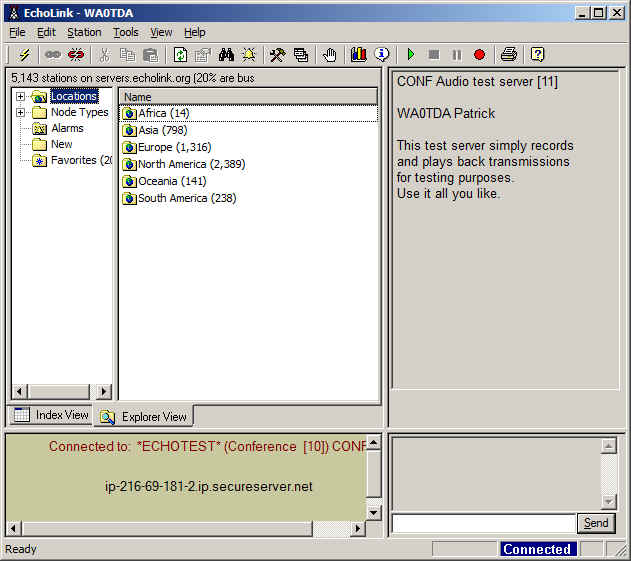
In the EchoLink screenshot, I am connected to the test server and there is confirmation text in the right side of the screen where the station list usually appears. I can toggle the spacebar to transmit and run a short audio test, in which the test server will echo what I have said back to me. This confirms that I can make connections and that my audio levels are set correctly. Since I had EchoLink working before and the router has nothing to do with the audio settings, I did not expect (nor did I find) any problems with levels.
Finally, I ran test connections with other stations and nodes. This was necessary because I have noticed that in some circumstances it is possible to connect to the test server without forwarding the ports. Connections to other nodes and stations will likely fail, however, until the ports are properly forwarded.
Resources that helped me with this setup were the very well-written support pages on the EchoLink website, the Portforward.com website, which lists a wide variety of routers and their configuration settings for EchoLink, and Lyle, K0LR, who gave me good advice about putting the static IP address outside the DHCP range. The Portforward.com website is one that is listed as a useful link within the EchoLink support pages.
What if you have a different router? That’s where the Portforward.com website will really be helpful. It gives directions that are specific to the model of router you have. What doesn’t change are the EchoLink port requirements, but making the actual settings can look quite different, depending on your router. Some, like my old Belkin, had a “Virtual Servers” page where settings were made. This sounds quite complicated, but like any complex task, it can be broken down into basic, easy to follow steps. I like the idea of learning my router’s setup, because that means that I will be able to make changes myself later on. I will feel good about being in charge of my own network, just as I know and control my amateur radio equipment. If something changes, I prefer to be able to diagnose the problem myself. It is something that, as radio amateurs, we should all try to do. Remember, you may be the only one available when a problem with your station or network needs attention!

Pat Tice, WA0TDA, is the manager of HANDI-HAM and a regular contributor to AmateurRadio.com. Contact him at [email protected].
Security for the Ham Shack: FakeTV

Although I’ve never personally suffered a break-in, I know others who have and I’ve been giving quite a bit of thought to “hardening” my home against theft and doing everything I can to create a deterrent. I’ve done all the commonsense stuff: installed deadbolts, added more motion-sensitive exterior lighting to the back of my home, and made arrangements with a neighbor to have the mail and newspaper picked up daily when I go on vacation.
Most of us have a pretty big collection of expensive radio toys. We also have the FCC callsign database pointing every criminal to the exact street address where they can find our expensive toys. And then there’s the antenna farm in the backyard broadcasting RF to the world and and the message to passerbys that “there’s something interesting and valuable here!”
Two weeks ago I began doing research on timers and other devices that fool burglars into believing someone is home. I figure that the best way to protect my home is to discourage a burglary to begin with. To me, this is the best plan. By making the house appear “lived in,” I hope to counteract the other factors that may make my home especially interesting to thieves. I certainly want to avoid my home being pegged as an easy target.
I stumbled onto a cool little device called FakeTV. I contacted the manufacturer with a few questions and they kindly provided me a demo unit to evaluate. It arrived quickly and I was pretty interested to see if the device lived up to some of the comments and reviews that I had read online. The FakeTV device is about the size of a fist — smaller than I had imagined. It’s very solidly built and is unobtrusive. My wife thought that it made a nice nightlight as well and the kids were mesmerized by it.
Now, I’m a pretty skeptical guy and am not easily impressed. FakeTV is pretty cool. It works a lot better than I expected it would. Looking at a window at night, I cannot tell the difference between a television and this device. The way it randomly switches colors and brightness creates a very, very convincing effect.
 The Fake TV has some limitations. First, I think it would be most effective in a second floor window. You really don’t want the would-be burglar to be able to peek into the window and see the device. It would kind of defeat the purpose. When I tested it, I put it on the first floor and it was very realistic with the blinds closed. However, at very close range with my face near the window I would probably have been able to hear the sound from the TV and it was conspicuously absent. Putting it in a room on the second floor (maybe a spare bedroom or den?) facing the road or driveway would probably be most effective.
I tested a few different configurations and it seemed to be most effective in a completely dark room. Other lights on in the room seem to diminish the quality of the FakeTV “effect.” I don’t think that you would want to use a light on a timer in the same room that you’re using the FakeTV device as I think the light would completely overpower it.
According to the manufacturer, it uses about 3W of power. The cost to operate the FakeTV is about $5 per year on average. Compared to about $150 per year for the same effect from leaving on a medium-sized LCD TV, you can see how FakeTV would pay for itself rather quickly.
The retail price of FakeTV is about $30. I haven’t seen them at Wal-Mart, Target, or any of the other big box stores but I wouldn’t be surprised to see them soon. Considering the investment I’ve made in radio equipment, I think $30 for this kind of deterrent is fair.
Matt Thomas, W1MST, is the managing editor of AmateurRadio.com. Contact him at [email protected].
Foul!
Following a tip from the VX-8R Yahoo group I ordered a high capacity 2000mAh FNB-102Li battery for my VX-8GR from a dealer in Spain that was selling them for EUR 28.50. The website couldn’t calculate shipping to the UK so I received an email asking me to order two connectors the cost of which equalled the cost of the shipping, making a total of EUR 36.80 – still much less than the price of the Yaesu product even when ordered from Hong Kong. After this was sorted out the battery was with me five days later.
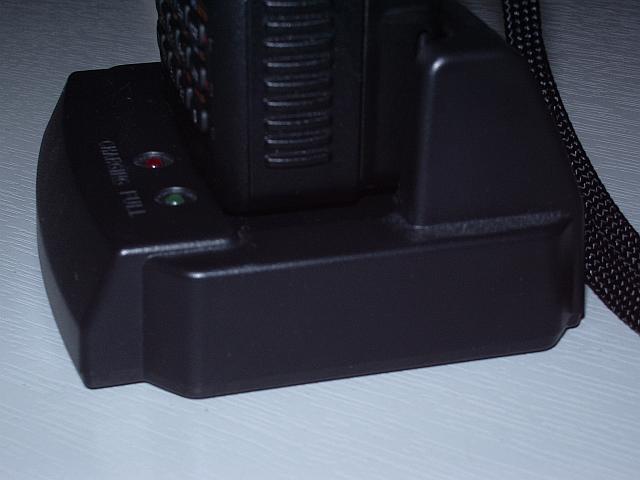
My pleasure at the speed of the shipping soon turned to dismay. Yaesu chose to make the VX-8 belt clip attach to the battery pack. I don’t know whether the accessory batteries bought from Yaesu come with a belt clip to attach to them but this one doesn’t, so if I want to interchange this battery with the one that came with the radio one of them will have to be used without a belt clip.
But worse was to come. The battery will not charge in the drop-in charger while it is attached to the radio! The charger has a platform which, as owners will know, is deeper than the radio with the stock battery – presumably to accommodate the thicker higher capacity version. But with this battery attached, the front of the radio fouls the lip at the front of the charger where the status LEDS are, preventing it from dropping the last tenth of an inch necessary for the battery contacts to make contact with those on the charger.
Is this a general problem with the FNB-102Li and the VX-8GR (in other words, is the GR thicker than the DR and my charger doesn’t allow for this?) or is it just this third-party battery that is thicker than the one from Yaesu and causing the problem? I’m having to take the battery off the radio to charge it, but that rather spoils the convenience of having the drop-in charger.

Julian Moss, G4ILO, is a regular contributor to AmateurRadio.com and writes from Cumbria, England. Contact him at [email protected].
Connector conundrum
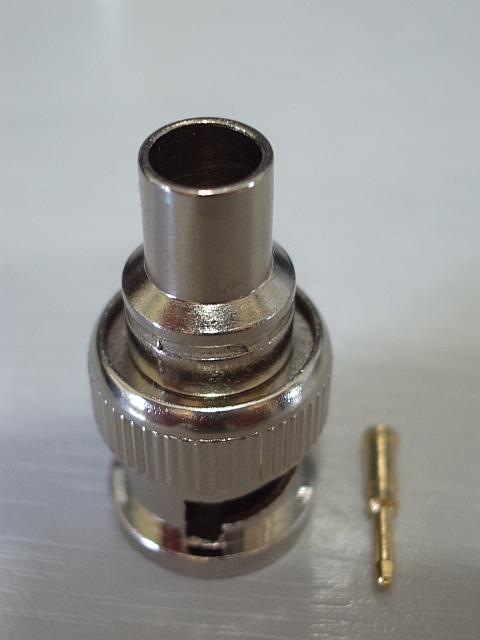
What is one supposed to do with the BNC connector pictured right?
I ordered 5x Crimp On BNC Plugs from eBay, expecting to get plugs with a narrow body and separate small piece of tube that you use to crimp the braid of the cable to the body of the plug. What I actually got was these, which I already had a couple of and didn’t know how to use. The only way I can see that you could use these is to crimp the large diameter barrel on to the braid itself, but with nothing but the nylon insulation beneath it you are not going to get a good contact. I think they are useless, though I did make a QRPP dummy load from one of the originals as two 1/4W 100 ohm resistors in parallel just fit inside the body of the plug and you can solder the ground ends to the outer.
I guess soldering the braid is the answer, but that isn’t what I bought crimp on plugs for and it isn’t going to make a very neat job.

Julian Moss, G4ILO, is a regular contributor to AmateurRadio.com and writes from Cumbria, England. Contact him at [email protected].
Listening to Moonbounce on 1296MHz with your browser
I noticed today that the PI9CAM group who use a huge 25m diameter dish for 1296MHz moonbounce would be active. The great thing about these guys is that you can listen to their receiver using a WEBSDR receiver at http://websdr.camras.nl:8901/
I took a very quick video – which isn’t great quality, but you’ll hear PI9CAM working a JA station. Remember the signals are bounced off the moon – a round trip around around 500,000 miles! You get a demonstration of the speed that radio signals travel at (the speed of light!) by listening to the echo from PI9CAM. You’ll hear him stop transmitting and then after a pause, you’ll hear the echo as it comes back from the moon.
A lot of EME takes place using the WSJT modes, but the contact on the video is in SSB – testament to the great equipment in use at PI9CAM! As I write this, I’m listening to LX1DB on SSB too – so I highly recommend you have a listen next time the group is active – check their webpage for details.

Tim Kirby, G4VXE, is a regular contributor to AmateurRadio.com and writes from Oxfordshire, England. Contact him at [email protected].
ICQ Podcast Series Four Episode Two – Irish 80m Contest (16 January 2011)
Series Four Episode Two of the ICQ Amateur / Ham Radio Podcast. News Stories include:
- Commemorative stamps for radio society
- UK antenna manufacturer launches
- International Short Wave League celebrations
- Radio Meteor Detection
- Amateur Radio Club helps kids communicate
- UK DRM+ trial
- Italian amateur radio repeaters disregard IARU bandplan
- New UK lightwave record
- 8 year-old Arkansas Radio Ham
Your feedback and Colin (M6BOY) reviews taking part in the Irish 80m contest.
Colin Butler, M6BOY, is the host of the ICQ Podcast, a weekly radio show about Amateur Radio. Contact him at [email protected].
SoftRocks
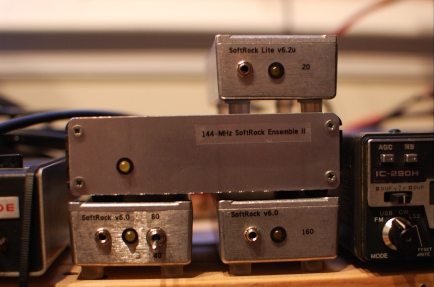
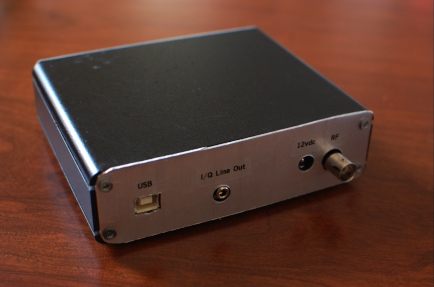
Finally got all of the SoftRock downconverters here enclosed and repaired. Turns out I managed to cross two of the wires on the input transformer of my 20-meter v6.2 Lite (“upgraded” variant). Once I found that, it sprung to life. The other project was getting the 144-MHz Ensemble II VHF into an enclosure. This has been a long-standing struggle since the nearest size diecast box is just a hair too small. So, I put it into an extruded aluminum enclosure I found at Dayton a few years ago. Unfortunately, I had to make my own front and rear panels. But, I had an old minibox that was perfect for the donor material.
I should have polished the edges of the front and rear panels, but it’s not too bad. KK7B opined in a QST article many years ago that after homebrewing “about 50 enclosures, they start to look respectable.”
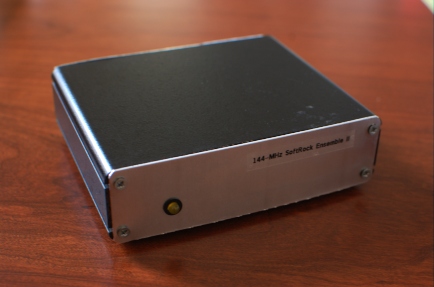
Holes were punched with a hand punch from Harbor Freight. Given the cost of the Roper-Whitney equivalent and for as much as I will use it, this is perfectly acceptable. There’s nothing like having the right tool for the job! However, mine came with two 5/16-inch punches (no 1/4-inch), but one each 1/4-inch and 5/16-inch die. Ooops. VFBBYQC. So, I had to drill the 1/4-inch LED hole. A nibbling tool made quick work of the USB cut-out. I cut the panels with hand shears. So, I guess it should be clear what’s next on my sheetmetal shopping list…
Now, I need to actually play with some “real” SDR instead of just diddling around with Rocky (which is very capable). I’m running it under Windows XP on a 1.3 GHz Pentium IV with 1 GB of RAM. The sound card is a Creative Labs Audigy 2 ZS. There is a little latency when running a large waterfall and resizing windows, but it’s adequate for tinkering. Eventually, I’d like to try some of the GNU/Linux SDR engines. But, I’m just going to wait until a new (to me) computer falls into my lap before that happens.
Ethan Miller, K8GU, is a regular contributor to AmateurRadio.com and writes from Maryland, USA. Contact him at [email protected].
 Ham Radio Deluxe |
 W5SWL Electronics |
 Ham Radio Prep |
 KB3IFH QSL Cards  Hip Ham Shirts  HamRadioAuctions HamRadioAuctions Reliance Antennas Reliance Antennas Enigma Shop Enigma Shop |  morseDX  Ni4L Antennas  R&L Electronics R&L Electronics antennas.us antennas.us QRV QRV |
- Matt W1MST, Managing Editor
