 |
 Ad Hoc Resolution
 23 January 2011 | by
 I’ve decided to get my QSLing in order and file for DXCC. Call it an “ad hoc” New Year’s resolution. I’ve been eligible for DXCC for seven or eight years now, but just haven’t had the time or inclination to do the paperwork. Perhaps Logbook of the World had something to do with all of this. On a whim I decided to get my LOTW up to date. I hadn’t uploaded to it or checked on it for almost three years. After figuring out that my certificate key thingy expired, I got a new one and managed to learn all over again the process for uploading QSOs.
I like the concept of LOTW, but I’m surprised a lot of people use it. I’m not a computer newbie; I’ve been doing IT for almost 20 years now and I cut my teeth writing assembly on a Commodore VIC-20 when I was a teenager. I find the process for getting LOTW going way overcomplicated. I can’t imagine how others who can barely log in to their computer use LOTW. But I guess where there’s a will there’s a way. Considering that LOTW contacts can be used to file for awards and the costs for paper QSLing has skyrocketed over the years, there’s more of a motivation than ever to use Logbook of the World.
Upon updating LOTW I saw that I was eligible for WAS and Mixed, CW, and Phone DXCC with just LOTW QSOs. That got me looking at my paper QSLs and weeding out what LOTW had. I read the DXCC and LOTW FAQs about five times and I think I’m ready to file. Since getting LOTW up to date, I’ve experienced a resurgence in my interest in DXing. Recently I’ve been working DX on 40 and 80 in the evenings, watching the DX cluster and picking them off the spots. I even cranked the power up to 100 watts from the normal five. (Gasps from the studio audience) I made a contact the other week and caught myself saying “Yes!” and being all giddy. I don’t remember what country it was, but the feeling has stayed with me. After months of questioning my interest in amateur radio it’s good to know the radio artisan spark is still there.


More on Meteor detecting using the NAVSPASUR
Dave, WW2R/G4FRE kindly pointed me in the direction of a really interesting article, dating back to 1998, written by Dr Tony Phillips on the NASA website. Rather than using the GRAVES transmitter in France, this is based on the NAVSPASUR radar in in Texas. This radar operates at 216.98MHz as opposed to the 143.049MHz at GRAVES.
The article shows some great illustrations of reflections AND satellite echoes which is something I was really curious about.
Enjoy the article here
I’d be interested to hear from any North American readers if they have any success listening to this system.

Tim Kirby, G4VXE, is a regular contributor to AmateurRadio.com and writes from Oxfordshire, England. Contact him at [email protected].
Anticipation – – – HAMCATION & IDGOTAES

Tailgate action as K4UPG buys a MFJ 207
Wahoo! It is that time of year again. I am counting down the days to one of my favorite ham radio activities… Orlando Hamcation is coming on Feb 11-13.
After reading the editorial in the new issue of World Radio Online a cord was struck that resonated with this here ham. I realized that I have a common disease. The article says, “Seems there are a lot of radio amateurs suffering from IDGOTAES.” OH NO… I have it. Throughout the month of December and most all of January, I’ve been sidetracked with other priorities and without realizing it have become afflicted with IDGOTAES. ( “I Don’t Get On the Air Enough Syndrome” ) This is a bad one and only can be cured by some serious outdoor QRP activity if you are a true portable QRP op like me.
Praise the Lord, there’s some good opportunities to get on the air coming up and one cannot find a better place to stock up on goodies than the vendors, swap tables and tailgate are of HAMCATION. So kick off the winter snow-bound blues and git on down here and enjoy with me.

Feeding frenzy at the vendor area of Hamcation!

Tailgate area is HUGE!
We’ll be holding an unofficial gathering of QRP types on Saturday Feb 12, 2011 at Hamcation. Let’s meet up at noon at the QRP ARCI booth and swap stories and get to know one another. Look for the wild eyed guy in the bright yellow cap that says K4UPG on it and his very distinctively white haired partner Jim K4AHO won’t be far away! Be there and let’s get over this dreaded disease together as we plan some Central Florida QRP Group outings for the rest of the year. QNI? Ya hear?
72,
Kelly K4UPG PB #173
Kelly McClelland, K4UPG, is a regular contributor to AmateurRadio.com and writes from Florida, USA. Contact him at [email protected].
WSPRing on 80
A blog post by Roger, G3XBM, about how far he was able to be received running 5mW of WSPR on 80m using a lash-up antenna prompted me to give QRPP WSPR a try. But before I could start, I needed to make an attenuator. The lowest power my K3 or K2 will go down to is 100mW, but not with very much accuracy. I decided to make a 20dB attenuator which would divide my power by 100, so I could run 1W and get 10mW output.
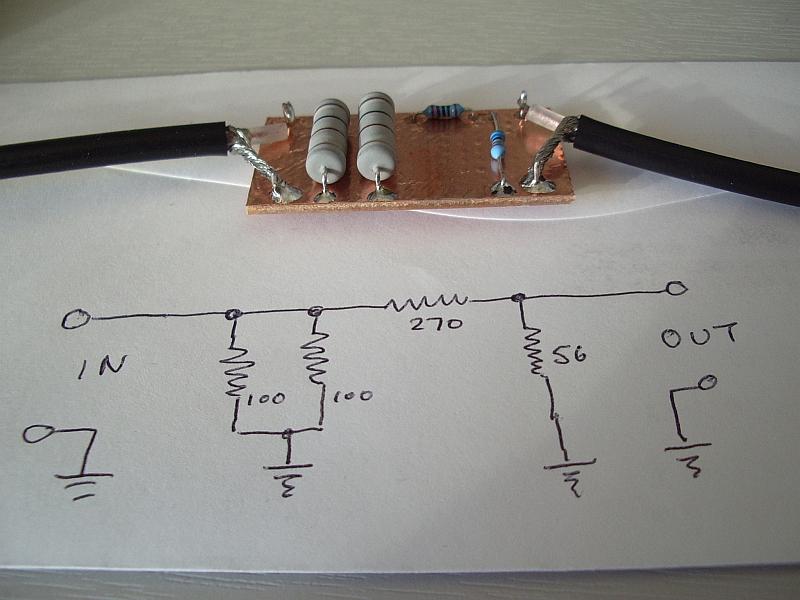
There are numerous websites that will design an attenuator for you given the working impedance and amount of attenuation required. I was not looking for precision – I would be surprised if the output of either of my radios was within 10% of the selected power anyway – and moreover I wanted to build it now using parts from my junk box not have to send off for some exact values and wait for several days for them to arrive. My attenuator was built as shown above and gave a 1.2:1 SWR over the HF range which was good enough for my purposes.
I started yesterday evening running 10mW on 80m into my end loaded attic dipole. I received no spots at all initially. I was puzzled as to why I could hear the WSPR audio using the K3 monitor even though the extension speakers I use with the K3 were switched off. I was about to compose an email to Elecraft enquiring whether the last firmware update had the effect of routing the monitor audio to the internal speaker even when an external speaker is connected when I realized the sound was coming from the computer speakers! Windows had decided to renumber the sound cards since I last used WSPR and although the receive channel was still the same and spots were being decoded the transmit audio wasn’t going to the radio. Doh!
Some time after I began transmitting I received a couple of spots from G3XLW 478km away in the south of the country. But that was all. I decided to leave it running overnight and received spots from David off and on throughout the night. These were augmented in the morning after 0800z by three spots from M0DDT at a distance of 355km to the south east. Not as impressive as Roger’s results. I guess my attic dipole, being very low for an 80m antenna, is a cloud-warmer and sends most of the RF straight up. Roger was loading the feeder of his 10m halo which doesn’t sound like much of an 80m antenna but in effect he had a top loaded vertical which probably has more lower angle radiation. That’s my theory, anyway.
It was an interesting test and I shall try very low power WSPR again on other bands. However I don’t agree with the extremist view held in some circles that people should only use WSPR with such low powers. It’s certainly interesting to discover if you can get to the end of the street on 10uW but higher powers of a few watts will reveal propagation to places lower powers won’t, information that is likely to be more useful when applied to making contacts using other modes.

Julian Moss, G4ILO, is a regular contributor to AmateurRadio.com and writes from Cumbria, England. Contact him at [email protected].
NASA seeks help tracking satellite
NASA has asked amateur radio operators for help to determine if a recently launched satellite is operating. The NanoSail-D satellite was ejected automatically from the Fast Affordable Scientific and Technology Satellite, FASTSAT on Wednesday, January 19. NASA needs reports of the beacon telemetry to determine if it is operating correctly. The beacon signal is on 437.270MHz using standard AX.25 packet so APRS and packet radio operators with 70cm capability should be able to receive it.
Predictions for the satellite can be found here. Reception reports can be submitted here. Full text of the NASA press release here.

Julian Moss, G4ILO, is a regular contributor to AmateurRadio.com and writes from Cumbria, England. Contact him at [email protected].
W7IUV preamplifier
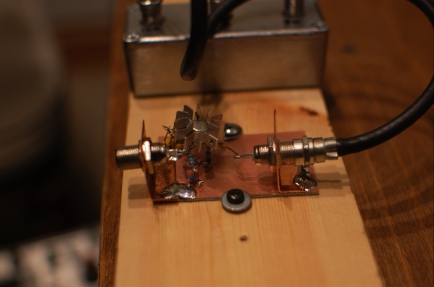
An evening project: W7IUV low-band receive preamplifier. Total cost: < $10. Total time: 1 hour.
It worked pretty well on 80 and 160 with the crossed K9AYs. The 48-volt relays in the box at the antennas are sticking (thanks to using a 40-volt PSU). I need to rebuild this with lower-voltage relays or a higher-voltage power supply.
W7IUV claims that he just leaves his connected to his RX port all the time. But, he probably has more spacing between his TX and RX antennas than I do. It will be interesting to see if I get enough RF coupled from my TX antennas to destroy the transistor.
Ethan Miller, K8GU, is a regular contributor to AmateurRadio.com and writes from Maryland, USA. Contact him at [email protected].
Handiham World for 19 January 2011
Welcome to Handiham World!
Last week we promised: I replace my Internet router and configure EchoLink port forwarding. Will I ever be on EchoLink again? Tune in and find out!
Today we begin with our “Connecting with EchoLink” segment. I see that last week has turned into “this week”, and I have kept up my schedule and replaced my old Belkin-N wireless router with a hopefully more reliable D-Link DIR-655 wireless N router. Although I liked the Belkin, it had some odd quirks like simply ending its wireless transmissions when it felt like it and refusing to bring up the access screen through the browser so I could check the settings. I decided to hang on to it for a spare since it mostly works, but isn’t really reliable enough to keep as a primary unit.
Like most households, ours has multiple Internet-enabled devices. There is a mix of wireless and wired clients on our home network, so a wireless router these days typically has at least four LAN jacks along with the usual wireless capability. You can tell that there are two ham operators interested in technology in our household, because we have all sorts of gizmos that need Internet connectivity to work. When my son Will, KC0LJL, is home from college, it is not unusual for us to host a LAN party with a few of his friends visiting us and logging in to play online games.
I’ve owned several wireless routers in the past, upgrading to allow for better wireless coverage or more robust security, or to add more custom configurability. So here we are at the latest choice, the D-Link DIR-655. After a lot of web research and reading user comments, especially those on Amazon.com, I settled on the DIR-655 because it had lots of configuration options, excellent wireless range, is compliant with the IEEE 802.11N standard for faster data transfer, and was reasonably priced at less than $75. I also like the D-Link products I already own.
The router arrived in due course, and yes, I did open the box and read the setup directions. I suspect that most manufacturers offer a CD-based automated installation system, as D-Link does. I have configured many devices, so I elected to instead connect the router via a LAN cable to a computer and do the configuration through a web browser. My reasoning was that any kind of “typical” installation that might be configured via the CD would not suffice for my special needs, like configuring EchoLink. Typically one gets into a router by opening a web browser and typing in router’s ip address, which is usually something like 192.168.0.1. This will open the main login page on the router, and you go in with the “admin” name and whatever the manufacturer says is the default password. Once, in, you will want to go through the housekeeping settings, such as setting your new password (write it down!), giving your wireless network a name, and setting the wireless security credentials. Usually the firewall settings can be left alone, but some applications, like EchoLink, will require that several ports be open. It is safe to do so, but you have to be careful to still maintain the other firewall settings. It is dangerous to turn off the firewall because it exposes your network to all sorts of bad guys with keyboards! Most routers have a “DMZ”, with is a “demilitarized zone”, that is outside the firewall. Although a computer on the network can be placed in the DMZ to avoid firewall issues, this is only a good idea for short term testing. I like to keep all of my computers and network devices behind the firewall.
Operating systems like Windows have their own firewalls. Incorrectly setting the Windows firewall to block EchoLink can also cause a problem of course, but since I knew my machine had already been working fine on EchoLink with the old router, I would not need to mess with any Windows firewall settings. It was time to head for the “Advanced” menu on the router configuration page and choose “Port Forwarding”.

In the screenshot above, I have entered the name of the application (EchoLink) for reference later on so that I know which app is dependent on which port forwarding rule. Under the “Ports to Open” column, I have entered 5200 in the TCP box and 5198,5199 in the UDP box. In the “Schedule” column I have used the pull-down menu to choose “Always” for 5200 and “Allow All” as the inbound filter setting for 5198, 5199.
So far, so good, but we are not done yet. Since the router can forward ports only to one computer on my network, I must decide which machine will be my primary EchoLink computer. Since the one I use for the ham shack applications has an IP address of 192.168.0.100, I need to enter that address in the IP Address box. I make sure the rule is active by checking the box to its left, and I then choose “Save Settings” and wait for the router to tell me that the settings have been applied. If you are wondering where I got the port numbers, all of this information about what EchoLink requires is on the EchoLink website.
Now I have to make sure that my computer will always have the same IP address when it talks with the router. Virtually all routers assume a typical user will not mind if an IP address changes from time to time. The “DHCP Server Settings” is our next stop. DHCP stands for “Dynamic Host Configuration Protocol”. That is fancy talk for the router being able to deal out IP addresses more or less at random within a range of addresses to all the various devices on the network. Each device on the network must have its own unique IP address. These can change “dynamically” as new devices enter the network, as might happen at a LAN party or when one switches on an Internet radio or iPod Touch. Since we have told the router to forward EchoLink ports to only one IP address, we now have to make sure that the single IP address our main EchoLink computer uses never changes in this dynamic system. Our setting here is to check the “Enable DHCP Server” box, and fill in the range boxes with 192.168.0.101 and 192.168.0.199. This allows the router to dish out IP addresses between and including those two numbers. Notice that I left the IP address of the EchoLink computer, which is 192.168.0.100, outside the range of dynamically assigned addresses.

Next, it is time to make reservations. No, we are not going out to dinner! We are going to the DHCP Reservations List, which allows us to tell the router that the IP address of the EchoLink computer is to be “reserved” just for that computer and no other. The “Enable” box is checked and the settings can be saved as before. It is now time to log out of the router and test EchoLink.

EchoLink can be started normally, and the “direct connect” option in setup should be enabled. The station list should come up. Locate the EchoLink Test Server and try to connect. If everything is working right, the connection should complete and you should hear the familiar, “Welcome to the EchoLink Test Server” announcement.
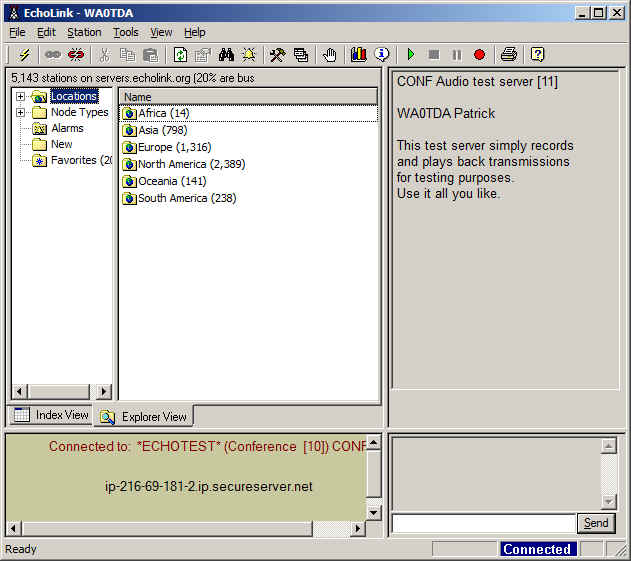
In the EchoLink screenshot, I am connected to the test server and there is confirmation text in the right side of the screen where the station list usually appears. I can toggle the spacebar to transmit and run a short audio test, in which the test server will echo what I have said back to me. This confirms that I can make connections and that my audio levels are set correctly. Since I had EchoLink working before and the router has nothing to do with the audio settings, I did not expect (nor did I find) any problems with levels.
Finally, I ran test connections with other stations and nodes. This was necessary because I have noticed that in some circumstances it is possible to connect to the test server without forwarding the ports. Connections to other nodes and stations will likely fail, however, until the ports are properly forwarded.
Resources that helped me with this setup were the very well-written support pages on the EchoLink website, the Portforward.com website, which lists a wide variety of routers and their configuration settings for EchoLink, and Lyle, K0LR, who gave me good advice about putting the static IP address outside the DHCP range. The Portforward.com website is one that is listed as a useful link within the EchoLink support pages.
What if you have a different router? That’s where the Portforward.com website will really be helpful. It gives directions that are specific to the model of router you have. What doesn’t change are the EchoLink port requirements, but making the actual settings can look quite different, depending on your router. Some, like my old Belkin, had a “Virtual Servers” page where settings were made. This sounds quite complicated, but like any complex task, it can be broken down into basic, easy to follow steps. I like the idea of learning my router’s setup, because that means that I will be able to make changes myself later on. I will feel good about being in charge of my own network, just as I know and control my amateur radio equipment. If something changes, I prefer to be able to diagnose the problem myself. It is something that, as radio amateurs, we should all try to do. Remember, you may be the only one available when a problem with your station or network needs attention!

Pat Tice, WA0TDA, is the manager of HANDI-HAM and a regular contributor to AmateurRadio.com. Contact him at [email protected].
 Ham Radio Deluxe |
 W5SWL Electronics |
 Ham Radio Prep |
 KB3IFH QSL Cards  Hip Ham Shirts  HamRadioAuctions HamRadioAuctions Reliance Antennas Reliance Antennas Enigma Shop Enigma Shop |  morseDX  Ni4L Antennas  R&L Electronics R&L Electronics antennas.us antennas.us QRV QRV |
- Matt W1MST, Managing Editor
